The Desktop Client
A CB set for your second screen
The Windows client is a working CB radio you keep on the desktop while you drive. Real knobs, a real channel selector, a squelch that actually gates the noise floor — not a mute button with a radio picture behind it.
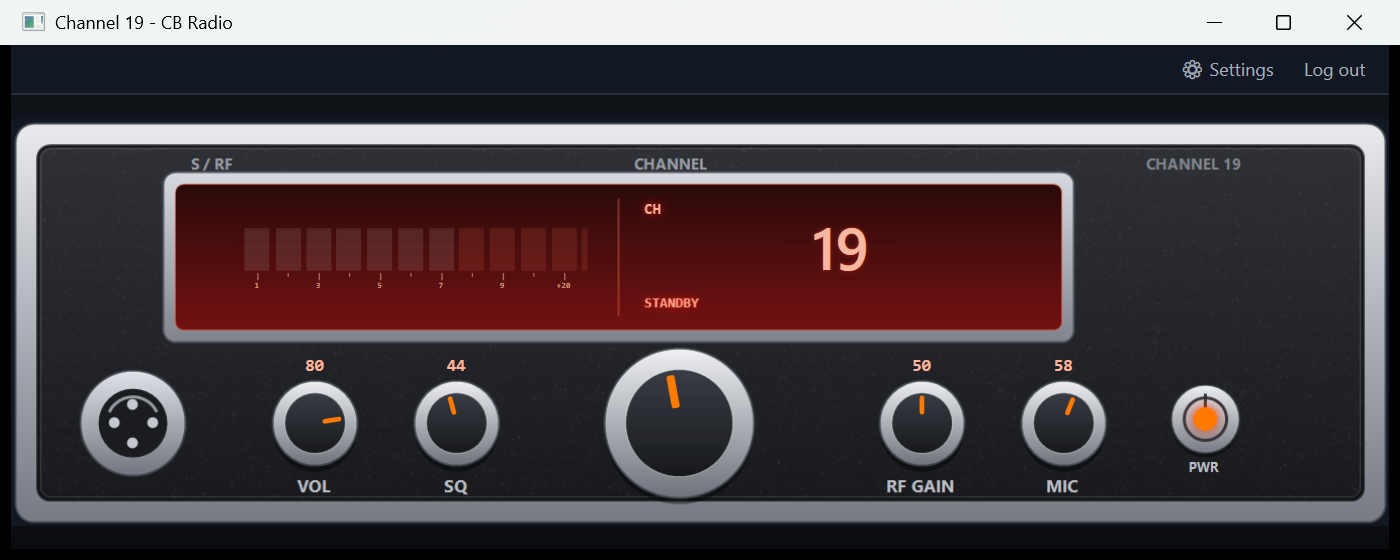
The Controls
Every knob turns. Drag one up or down, or roll the mouse wheel over it, and the pointer sweeps with the value shown beside it. The set behaves like equipment rather than a settings dialog:
- VOL — how loud the channel comes through
- SQ (squelch) — the gate. Turn it up until the hiss cuts out; anything weaker than the threshold stays silent
- RF GAIN — receiver sensitivity, ahead of the squelch. Back it off in heavy traffic to hear only the close ones
- MIC — your outgoing level
- CHANNEL — the big selector, 1 through 40
- PWR — kills the set. The hiss and the display go with it
Unsquelch the set with nothing coming in and you get the noise floor, band-limited the way a CB speaker sounds. Let go of the mic and the squelch tail chirps closed behind you.
Faceplates
Three sets ship with the client, drawn to the archetypes rather than to any one manufacturer. Pick one under Settings → Radio; the controls move with the artwork.
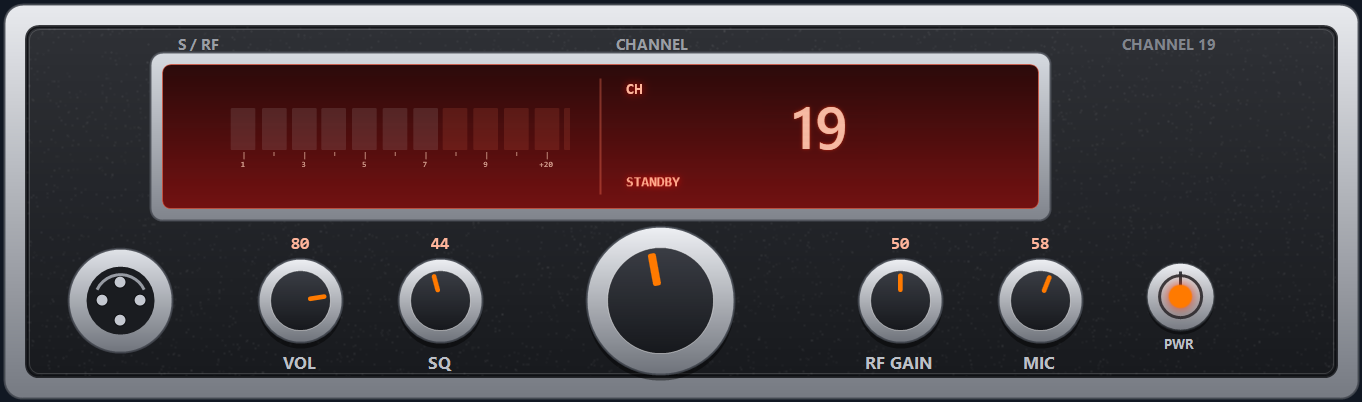
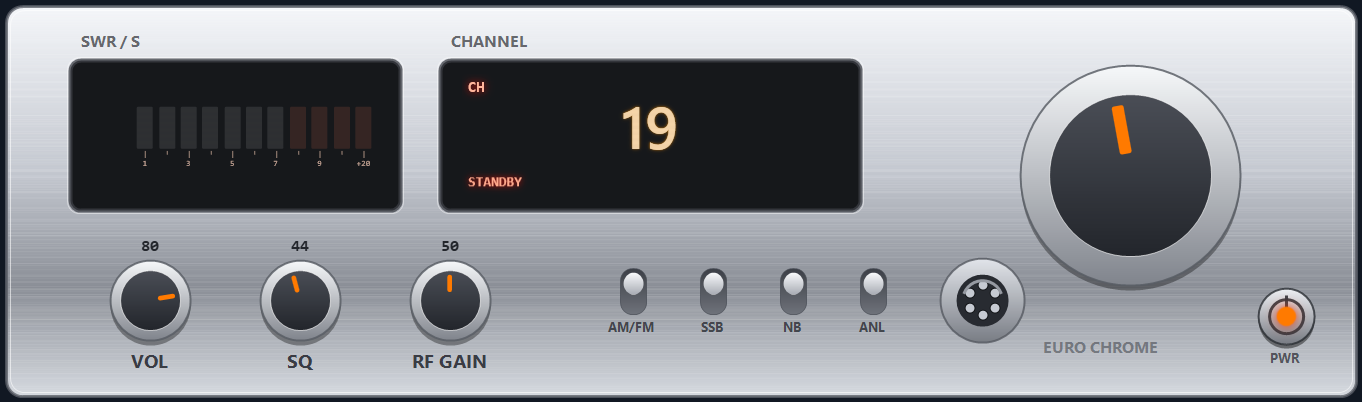
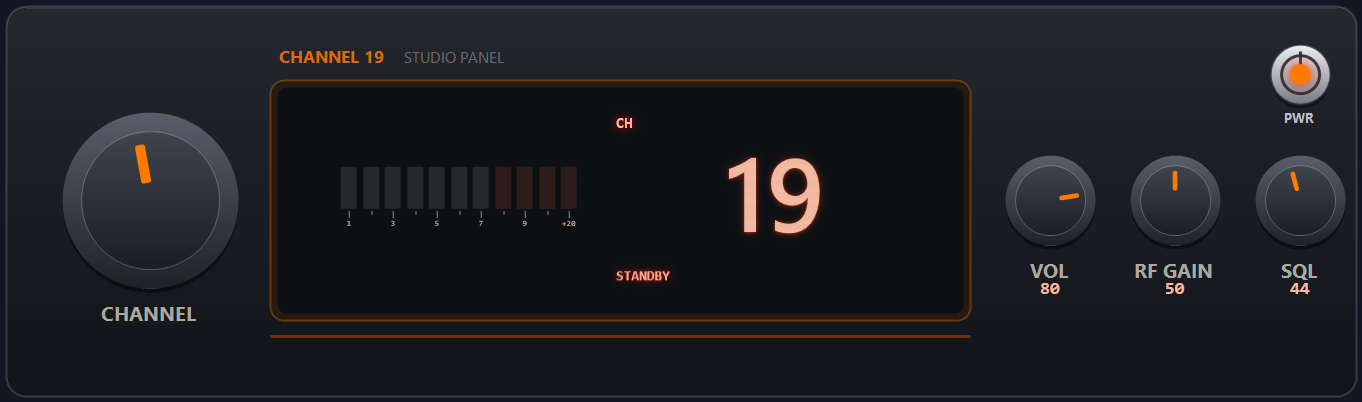
You can add your own. Drop a folder containing faceplate.json and shell.png into %AppData%\Channel19\faceplates and it appears in the picker — there's a README in that folder with the layout fields. The artwork is a 1362×402 image; the JSON says where the display, meter and each knob sit on it.
Faceplate-Only Mode
Turn the window frame off and nothing is left but the set, floating on the desktop. It's the way to run it on a second monitor or tucked into a corner over the game.
- Turn it on from the tray icon — “Faceplate only (no window frame)”. It switches immediately; no restart
- Move it by dragging anywhere that isn't a knob
- Resize with Ctrl + mouse wheel, or drag the edges
- Right-click the set for Settings, Stay on top, Reset size, Log out and the way back to the framed window
Position and size are remembered, in either mode. “Stay on top” keeps the set above a full-screen game.
Keybinds
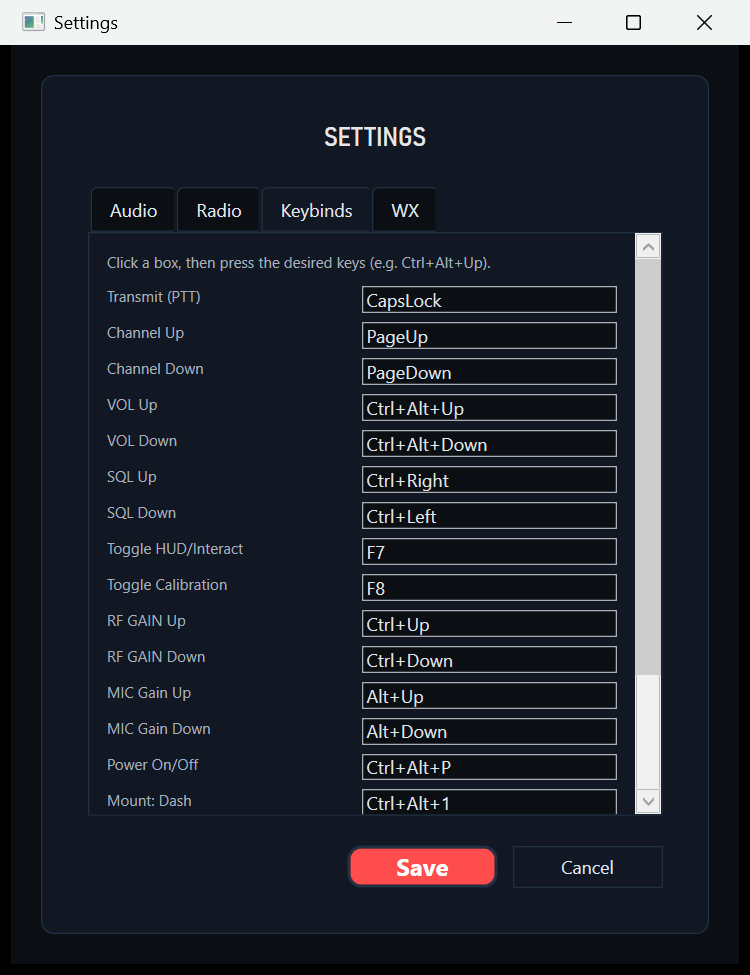
Every function on the set has a key, so you never have to click the radio while you're driving. These are the defaults — rebind any of them under Settings → Keybinds.
| Function | Default | Notes |
|---|---|---|
| Transmit (push to talk) | CapsLock | Hold to talk, release to listen |
| Channel up / down | PageUp / PageDown | Steps through 1–40 |
| Volume up / down | Ctrl+Alt+Up / Down | Turns the VOL knob |
| Squelch up / down | Ctrl+Right / Ctrl+Left | Raises the noise gate |
| RF gain up / down | Ctrl+Up / Ctrl+Down | Receiver sensitivity |
| Mic gain up / down | Alt+Up / Alt+Down | Your outgoing level |
| Power on / off | Ctrl+Alt+P | Kills the set, hiss and all |
| Mount: dash / overhead / passenger | Ctrl+Alt+1 / 2 / 3 | Where the set sits in the cab |
| Toggle HUD / interact | F7 | Click-through vs. clickable |
| Toggle calibration | F8 | Nudge the control positions |
Push-to-talk is hold-to-talk on every bind, CapsLock included — the key is read directly from the keyboard, so it works while the game has focus and the radio window doesn't.
Settings
Four tabs, and not much to get wrong:
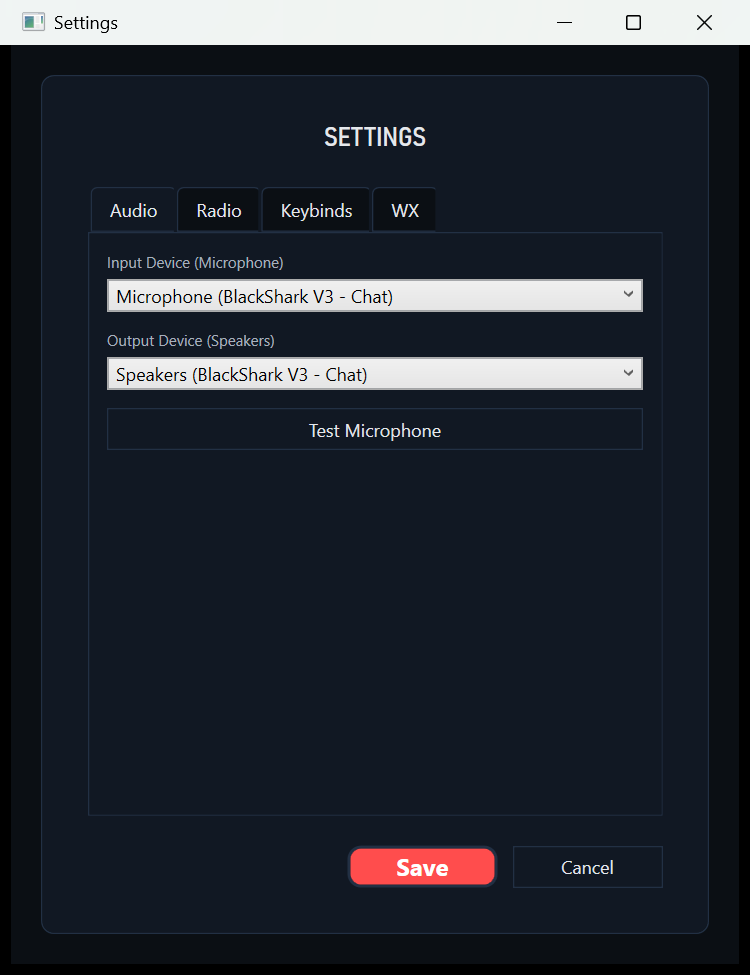
- Audio — pick your microphone and speakers, and test the mic
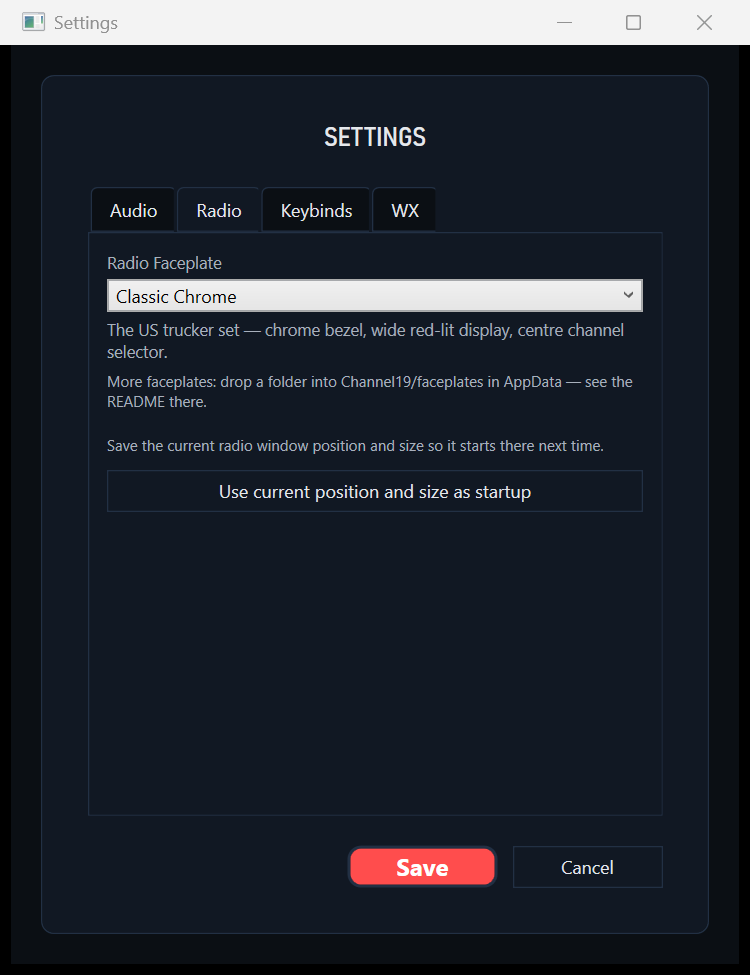
- Radio — choose a faceplate, and save the current window position as the startup position
- Keybinds — rebind anything
- WX — Channel 9 weather bulletins, on by default, read out on a timer
Channel 9 Weather
Channel 9 carries weather bulletins for wherever your truck currently is, on a timer you set (ten minutes by default). If American Truck Simulator or Euro Truck Simulator 2 is running, the client reads your position from the game and the bulletin follows you across the map.
Live Voice
Rolling out nowThe set you see here runs its own receiver — noise floor, squelch, RF gain, metering and all — so the controls are real and behave correctly before anyone is on the other end. Connecting that receiver to live channels is the piece landing next; until it does, the desktop client is a working radio that isn't yet carrying traffic.
To talk to drivers today, use the in-browser radio on your dashboard.
If Something's Off
- Hiss with nothing on the channel — that's the set working. Turn SQ up until it cuts
- A key moves two things at once — two functions share a bind. The Keybinds tab will show the collision
- Nothing happens when you key up — check the mic under Settings → Audio, and that the set is powered on
- The set is off the screen — right-click it and choose Reset size, or move it and re-save under Settings → Radio
- Knobs sit slightly off the artwork — press F8 and nudge them into place
Logs are written to %AppData%\Channel19\logs. If you need to raise something with us, that folder is the thing to send — support@channel19cb.com.
Channel 19 is an independent service. It is not affiliated with or endorsed by SCS Software, American Truck Simulator, Euro Truck Simulator, or Discord.